
The purpose of this guide is to assist session hosts and co-hosts in understanding the proper procedures and expectations when hosting or participating in sessions through BloxCord. Whether you are new to the system or simply seeking a refresher, this guide offers clear and comprehensive instructions from session setup to session conclusion.
1. BloxCord Session Setup
- When you decide to host a session, go to the sessions tab on BloxCord and wait for any available session slot. You can claim a slot 10 minutes before or after the listed time.
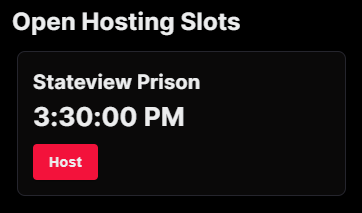
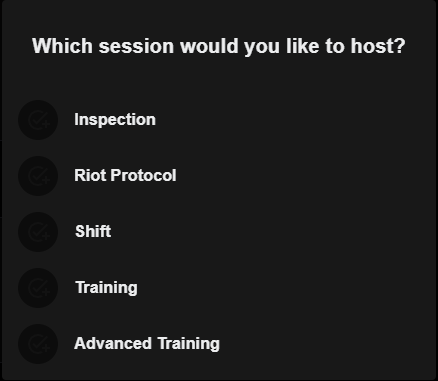
- After you pressed “Host” button on the time you selected to host, you choose the session you want to host:
Note: It will only show you the sessions you would normally be able to host. Example: Inspections will be visible to PC+ while shifts will be visible to SI+.
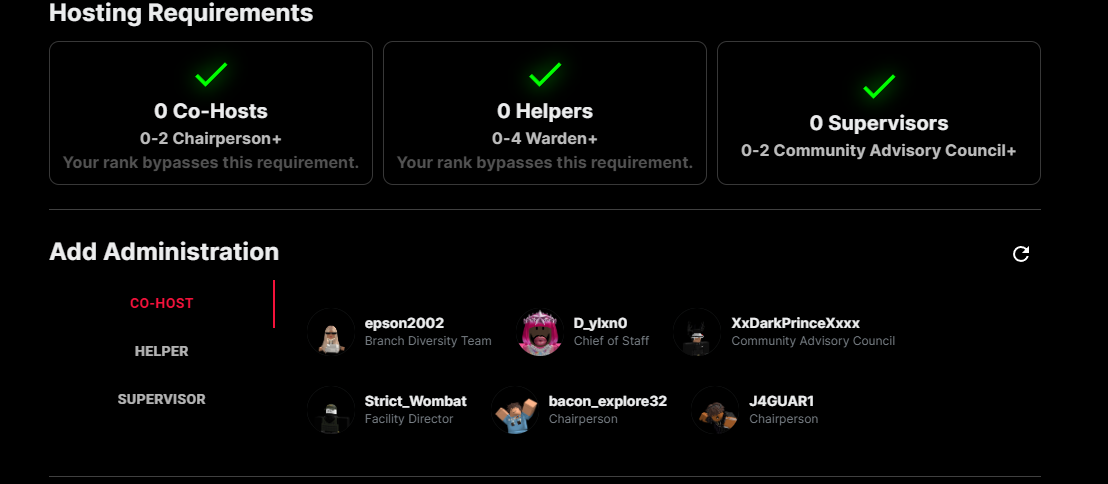
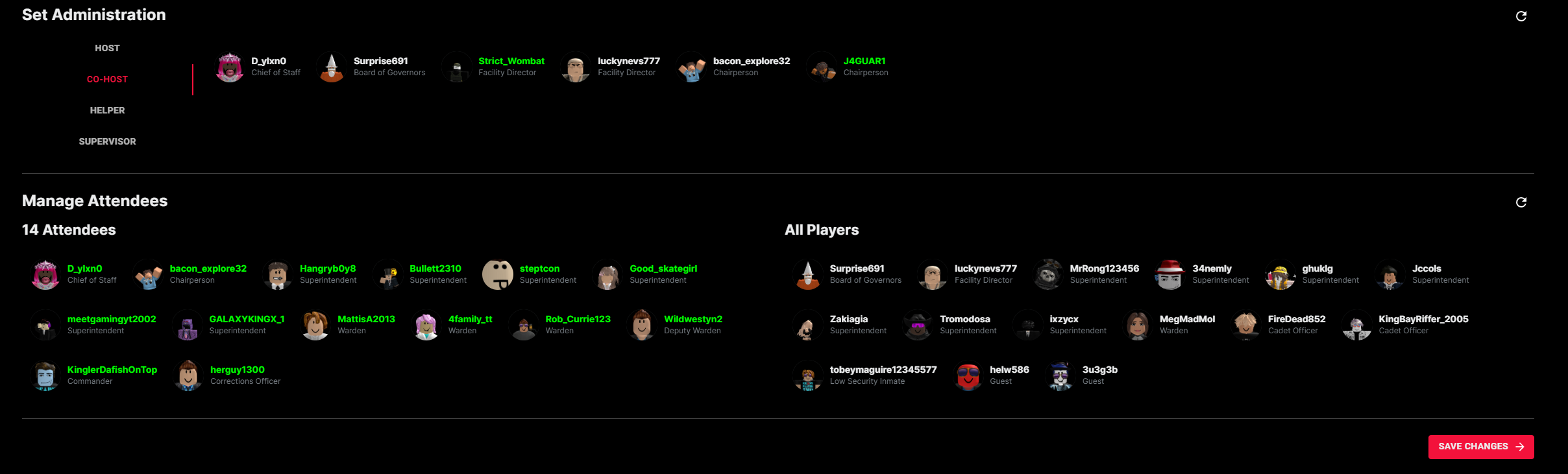
- After you complete step 2, you will be asked to put in your session administration. You should already know who these people are. The list will show people in your game server that meet the requirement for the role (Example: BOG+ can only be selected for Inspections as Supervisor role).
Note: It wont work if the time window expires while you’re selecting administration. The window expires 10 minutes after the time listed on the schedule. If you forget to add your session administrations you are allowed to add them from the “Modify” tab.
- After selecting your administration, press the Create Session button to continue.
-
Announce your session with the
hcommand three times as per the session guide. -
Once all your attendees are lined up in the session room, press the refresh button on the top right (as shown). This will add everyone to the list that is standing near you. You can click the usernames on either side to move them if you need to remove or add attendees. When you are satisfied, please press the Lock & Start Session button.
Note: You can change this list after you continue from the “Modify” tab.

2. BloxCord Session Phases
- After you have pressed “Lock & Start Session”, you will see your main session menu which includes Phases, Monitor, Cancel, and Ranking.
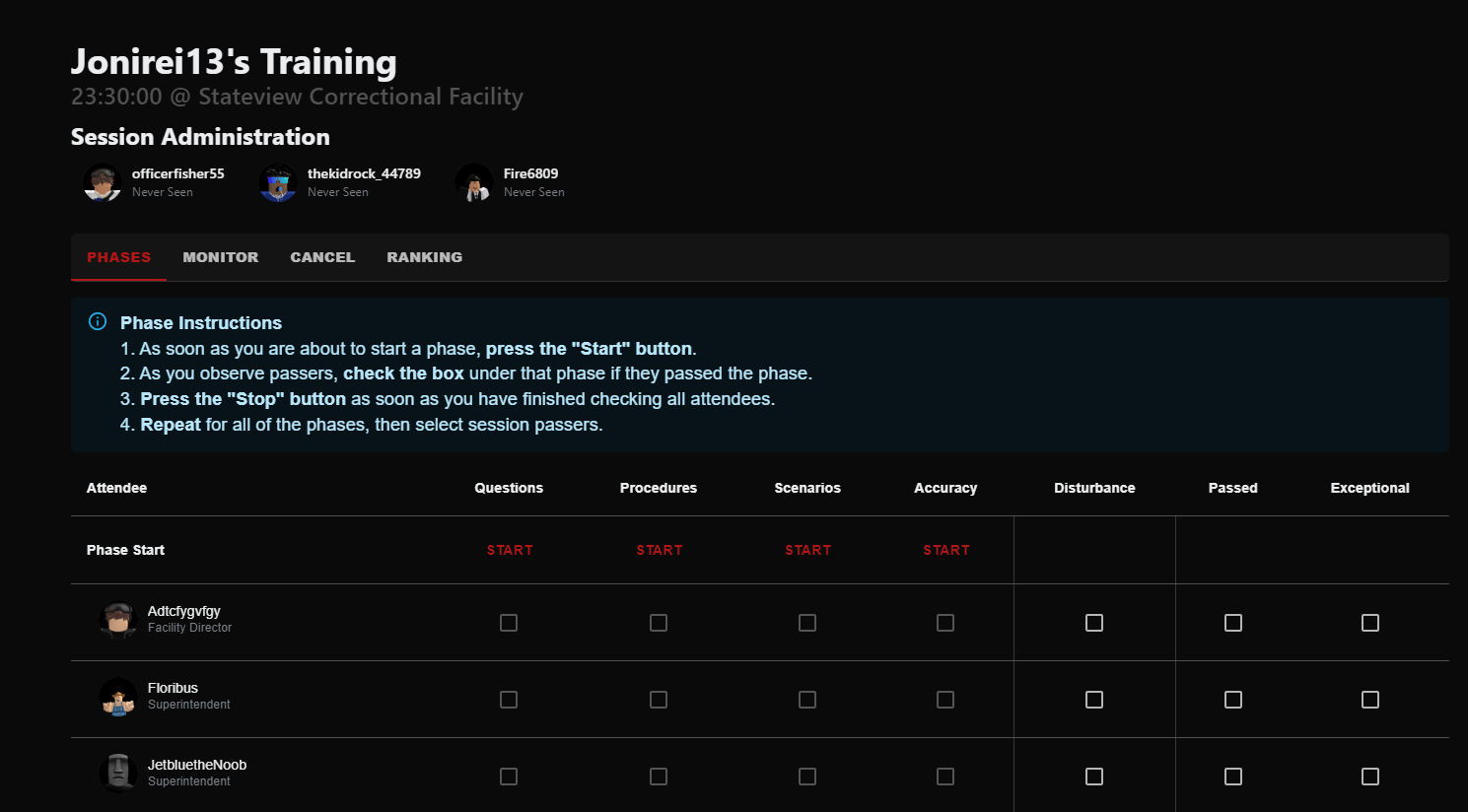
- This is the main page of the session. Every checkbox here indicates a PASS.
- Follow the given instructions:
- As soon as you are about to start a phase, press the “Start” button.
- As you observe passers, check the box under that phase if they passed the phase.
- Press the “Stop” button as soon as you have finished checking all attendees and the phase is complete.
- Repeat for all of the phases, then select session passers.
- Disturbance Marking: Use this feature only when you dismiss an attendee from the session due to disruptive behavior.
2. BloxCord Sections Timing
Each session type has its own set of sections, and we’ll explain them to you below:
Training Session Sections
-
Faces: Start this section on BloxCord when you begin stating the faces in-game. End it once you’re done going through all the faces.
-
Questions: Start this section on BloxCord when you present the questions. End it
3 minutesafter the questions have been posted. -
Scenarios: Start when you call up the first attendee for scenarios. End when all attendees have completed their scenarios and been marked.
-
Accuracy: Start when you call up the first attendee to the range room. End once all attendees have completed the range and the helpers/co-hosts have finished marking.
Advanced Training Session Sections
-
Questions: Start this section on BloxCord when you present the questions. End it
3 minutesafter the questions have been posted. -
Room Clearing: Start this section on BloxCord when you begin lining up attendees and explaining the procedure. End it once all attendees have cleared the hallway and reached the Maximum Security Yard.
-
Advanced Facility Procedures: Start this section on BloxCord when you begin explaining the patrol and drill expectations.. End it after the 8-minute patrol and drills have been completed, and all attendees have been called back to the session room.
Shift Session Sections
-
Posts: Start this section on BloxCord after you’ve explained everything and dismissed attendees to their posts. End it after
3–5 minutes. -
Drill: Begin this section on BloxCord right after the Posts phase ends. End it after
3–5 minutes. -
Call-Back: Start when you begin the call-back announcements in-game. End once all attendees have been called and marked.
Riot Protocol Sections
-
Round 1: Start this section on BloxCord when you begin the first riot round in-game. End it once the first round is completed and results are announced.
-
Round 2: Start when you begin the second round. End once it concludes and results are posted.
-
Round 3: Start when the final round begins. End once the round is over and results have been finalized.
3. BloxCord Session Passers
Once you are done with all sections, you are required to mark passers as either passer or exceptional. For example, in a training session, mark those who passed at least ¾ of the sections as passers; in an advanced training, mark those who passed at least ⅔ as passers; and in a shift session, mark those who pass at least ⅔ as passers (note that they must be present at the call-back). For exceptional marking, only mark those who pass all sections.

4. BloxCord Ranking Procedures
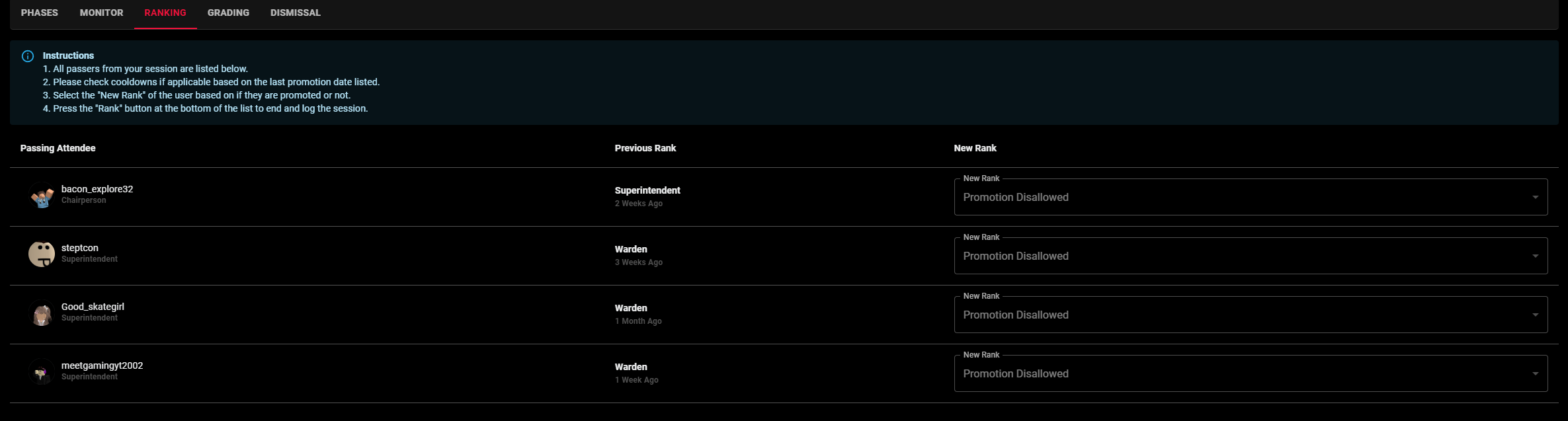
Once you have marked the passers, the next step is to proceed with ranking. Check CDs for all passers. After proceeding to ranking, assign ranks appropriately.
5. BloxCord Session Grading
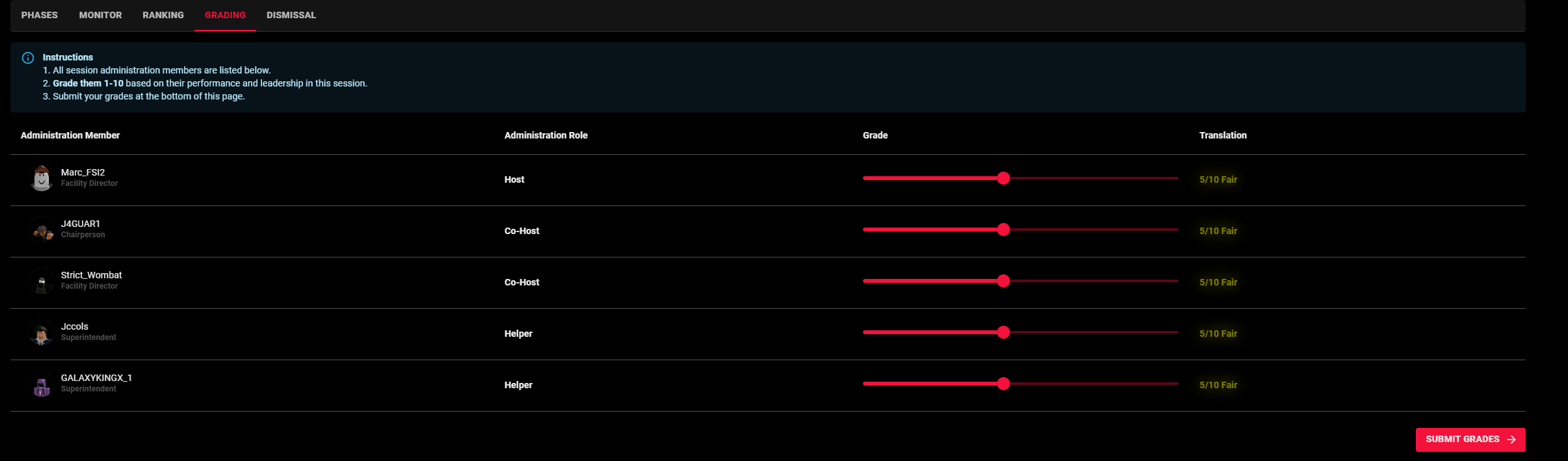
Once you have proceeded to ranking and announced the passers, ask your session administration to grade each other using the BloxCord Grading tab.
6. BloxCord Session Conclusion
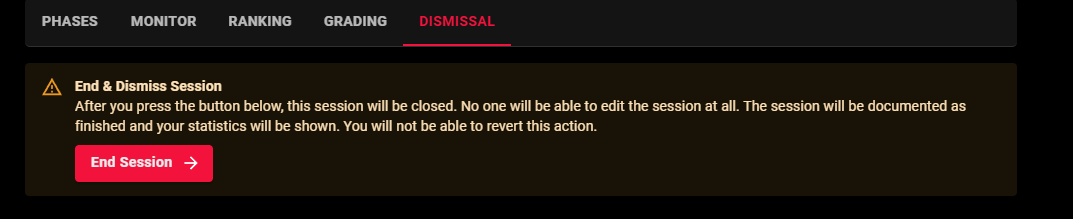
Once grading is complete and the session is concluded, you may end the session using the BloxCord Dismissal tab.
7. BloxCord Session Summary
Finally, after you press the Dismissal button the session archives and it saves to your records and leaderboard. You can review the following statistics:
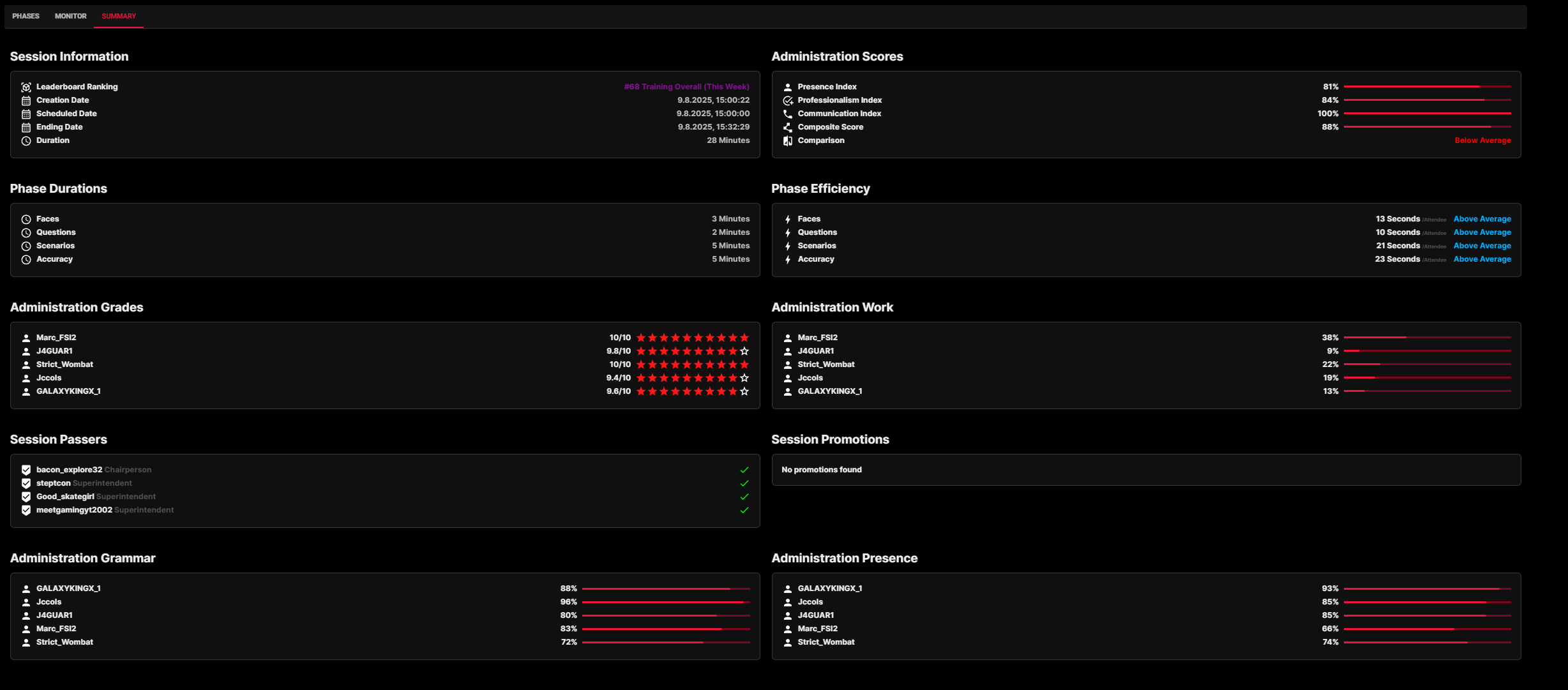
Administration Scores - BloxCord Computed scores from how active, professional, and productive all members of the administration were (host, co-hosts, supervisors, helpers). The composite score is an average of all the preceding scores and will be used for placement on the leaderboard.
Phase Durations - Shows the time taken for each phase.
Phase Efficiency - Shows the time taken per attendee for each phase. This is used for placement on the leaderboard.
Administration Grades - Each administration member has a 1-10 rating which is an average of what all the other administration members graded them earlier.
Administration Work - Distribution of who marked passers of phases and etc.
Session Passers - Users who were marked as passers.
Session Promotions - Users who were promoted.
Administration Grammar - BloxCord Computed scores from the grammar used by administration members in game. This contributes to the composite score and therefore your leaderboard ranking.
Administration Presence - BloxCord Computed scores from how long administration members were AFK in game for. This contributes to the composite score and therefore your leaderboard ranking.
BloxCord has a bunch of useful features you can use during sessions to keep everything running smoothly. We’ll walk you through the main ones—like how to remove competitive, mark disturbances, and use the modify option. Knowing how to use these tools will make hosting much easier and create a better experience for everyone.
- Remove Competitive: This option makes your session appear on the leaderboard after it concludes. You should only remove it if you forget to start or end a phase correctly, or if you’re hosting a modified session where competition doesn’t apply.

- Modify: Use this feature if you want to remove an attendee or edit the session administration. (Note: If you modify during or after a phase, your markings may be removed due to BloxCord limitations, so it’s best to make modifications before starting the session.)
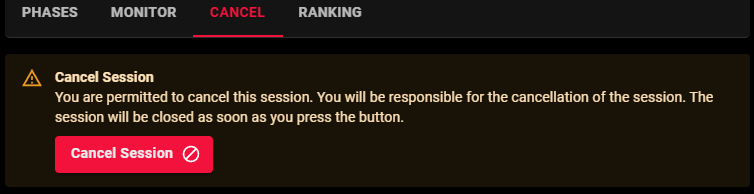
- Session Cancellation: Use this option if your session needs to be cancelled due to issues like server shutdowns, lack of attendees, or hosting errors. Cancelling a session will remove it from the BloxCord leaderboard, prevent it from affecting your hosting record, and it won’t count towards your quota. If you have a supervisor, please handle cancellations yourself or ask your supervisor to cancel the session on your behalf.
By following the procedures outlined here, you’re not only ensuring smoother and more effective sessions, but also upholding the standards expected within Stateview. Always use BloxCord tools responsibly, communicate clearly with your team, and lead your sessions with professionalism and integrity. Your attention to detail and commitment to quality help maintain a strong and respected environment across the facility.